How to Connect Google Drive
Pull images straight from Drive into your Assets and Ads, or export ad ZIPs to a Drive folder you choose.
Prerequisites
- A Get Shouting account (signed in)
- A Google account with access to the files or folders you will use
- Pop-ups allowed in your browser for authorization
- A desktop browser for the Google Drive file/folder picker (not supported on phones)
Drive connects via OAuth — no API keys to generate. The connection lives on your user account and works across every brand you access, separate from Social & Brand Settings and Google Business.
Step-by-Step Connection
Step 1: Open My Profile
- Log in at getshouting.app
- Click your Display Name in the top right of the navigation bar
- Open My Profile
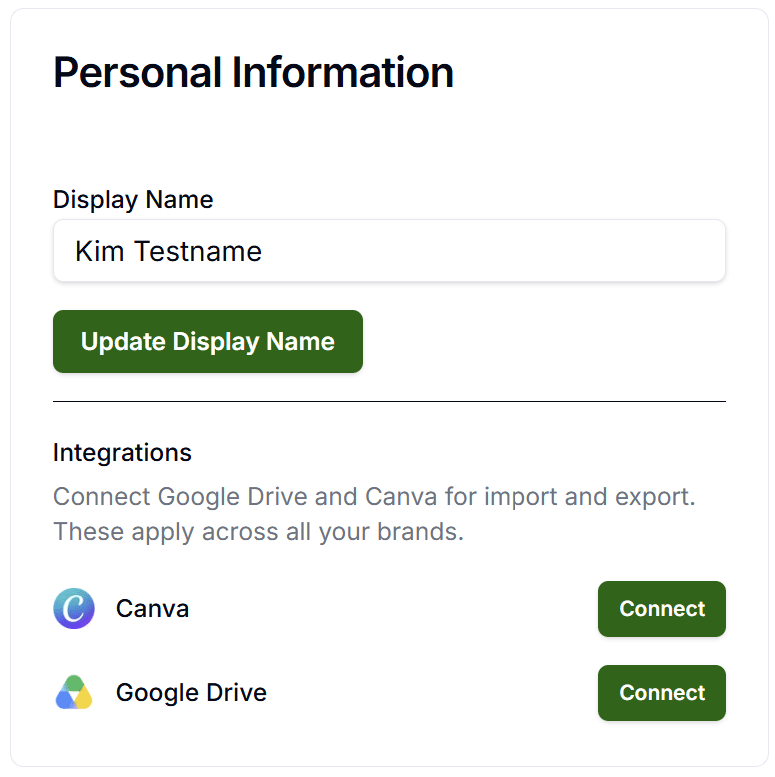
Step 2: Connect Google Drive
- Under Integrations, find Google Drive
- Click Connect
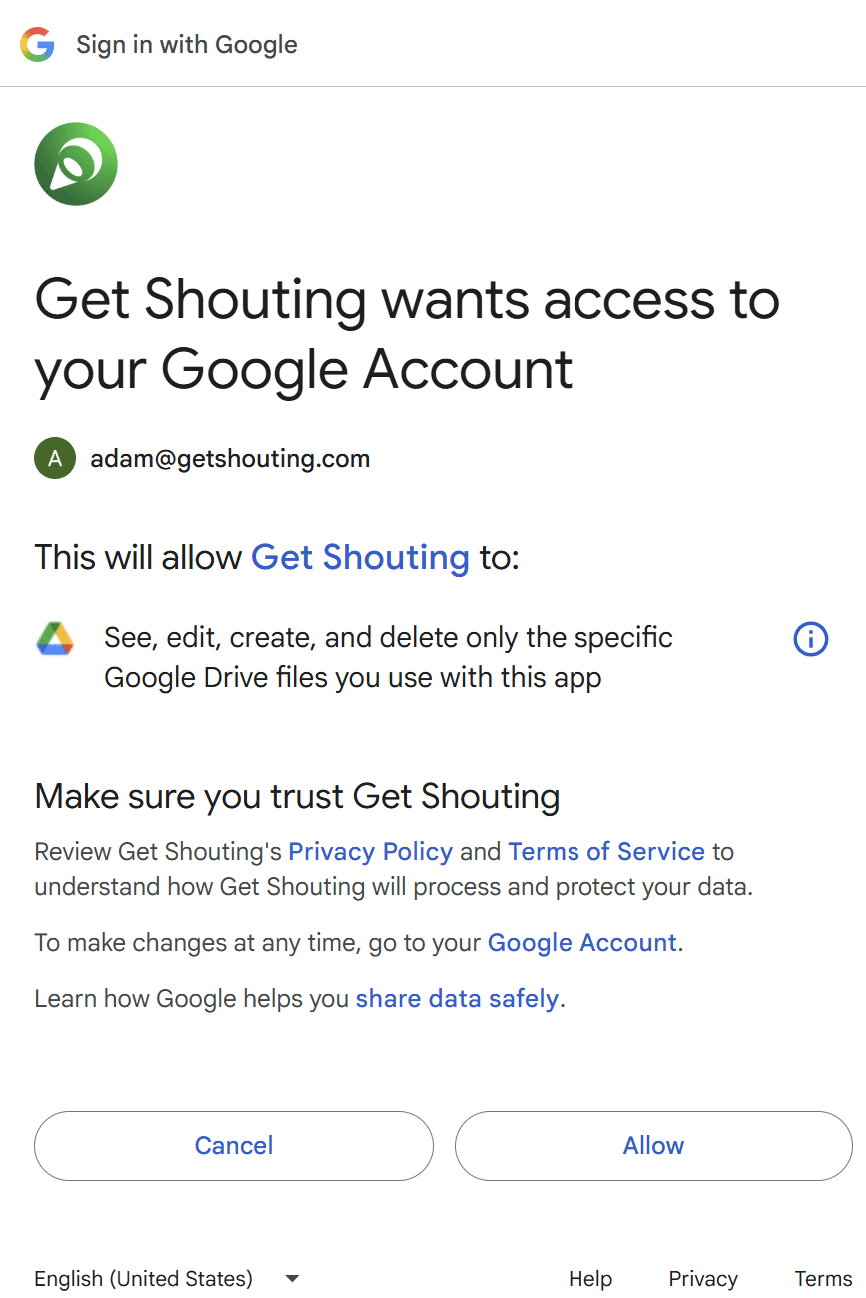
- In the Google window, choose your account and approve access
- When the window closes, confirm the green check and "Google Drive connected successfully."
You can also authorize Drive the first time you click Google Drive in the Upload Box, or Choose folder… during ad export.
Step 3: Import an Image from Google Drive
- Open any surface that uses the Upload Box — Assets → Add Assets, a Shout/Ad preview, or the ad logo manager
- Click Google Drive (authorize if prompted)
- In the Google picker, select an image from My Drive or a shared drive
- Confirm — Get Shouting downloads the file and runs it through the normal upload pipeline
Supported import types: JPEG, PNG, WebP, GIF. Video files and non-image documents are not supported through this picker.
Step 4: Export Ad Creatives to Google Drive
- Open the Ad in Preview with the platforms and assets you want
- Click Download or Export
- Select Save ZIP to Google Drive folder you choose.
- Click Choose folder… (or Change folder if one is already selected)
- Complete Google sign-in if prompted, then pick the destination folder
- Get Shouting builds the ZIP and uploads it to that folder in the background
Your last chosen folder may be remembered for the next export so you can change it quickly.
Disconnecting
Click your Display Name → My Profile, find Google Drive under Integrations, and click Disconnect. This clears Get Shouting’s Drive link and stored tokens, including the remembered export folder. Files already uploaded to Drive or imported into Assets are not deleted.
Troubleshooting
Pop-up does not open
Allow pop-ups for Get Shouting, then retry Connect from My Profile → Integrations.
Connection failed / origin mismatch
Sign in to Google in another tab first, then retry. If it persists, contact support.
Picker unavailable on mobile
Use a desktop browser for Drive import and folder selection.
Connected for import but export fails
Use My Profile → Integrations → Connect (or reconnect) so export access with offline refresh is granted.
Next Steps
- Connect Canva
- Create an Ad Shout
- My Assets
- Connect Social Accounts (Google Business Profile is a different connection)
Related Marketing Academy Lessons
Strategy and context for why these steps matter:
Keep Assets Moving with Google Drive
Import images in, export ad ZIPs out — right where your team already works
Start Your Free Trial TodayNo credit card required • 14-day free trial • Cancel anytime