How to Use My Profile Tab
Manage your personal account information, email, password, and referral program.
Required: All users (User, Admin, Super Admin). Plans: All plans. The My Profile tab is visible to everyone.
Accessing My Profile
- Click on your Display Name in the top right corner of the navigation bar
- Click the My Profile tab
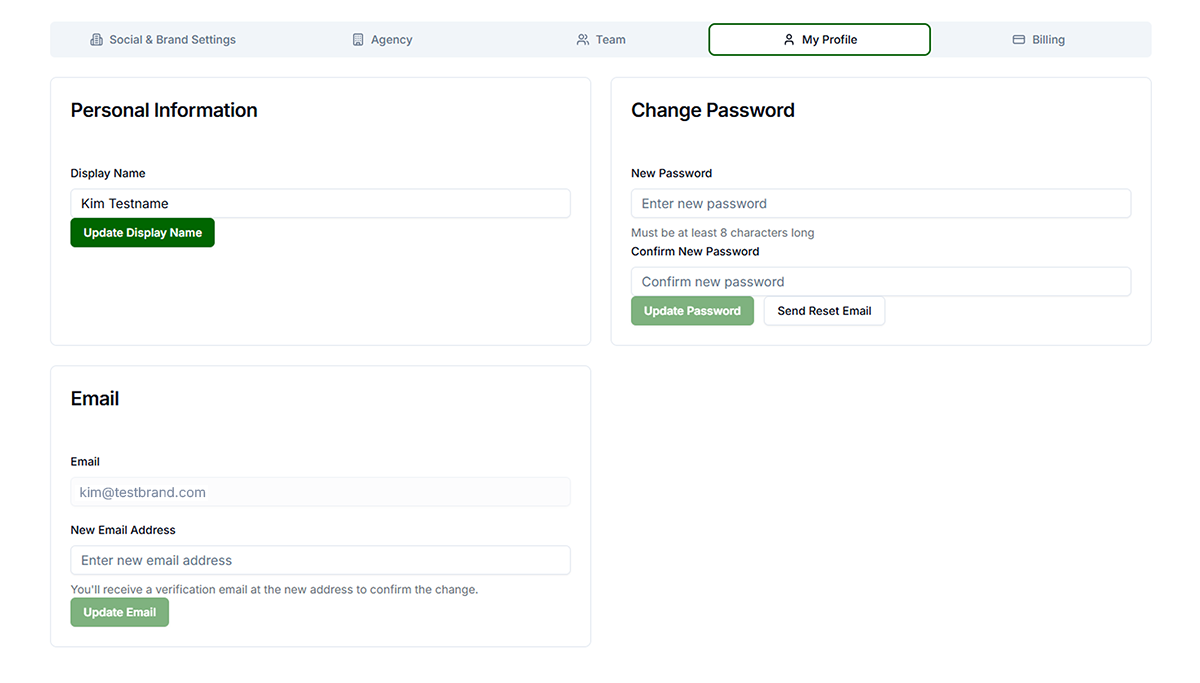
Personal Information
- Edit Name — Click in the Name field, edit, changes auto-save
- Change Email — Click Change Email, enter current password, enter new email, submit. You receive a verification email; click the link within 24 hours to complete. Until verified, log in with old email.
- Change Password — Click Change Password, enter current password, enter new password (min 8 characters), confirm, save. You remain logged in.
Integrations (Canva & Google Drive)
Connect Canva and Google Drive from the Integrations card to import designs and images into Assets or Ads, and to export ad creatives back out. These connections live on your user account and apply across every brand you access.
Referral Program (if Enabled)
Get a unique referral link. When someone signs up using your link and subscribes, you earn credits and they get a discount. Copy your link from the Referral Program section. Credits apply to your subscription.
Troubleshooting
- Email change not working: Verify current password. Ensure new email is not already in use. Check spam for verification email.
- Password change not working: Verify current password. New password must be at least 8 characters. Ensure New and Confirm match.