How to Manage Live Paid Ads
Pause, extend, and adjust live campaigns and gross budget on Meta, Google, and TikTok campaigns.
After you publish paid ads from a Campaign or from Preview, open Campaigns → Paid Social → Manage Live Ads to control delivery without leaving Get Shouting. Only ads published through Get Shouting appear here.
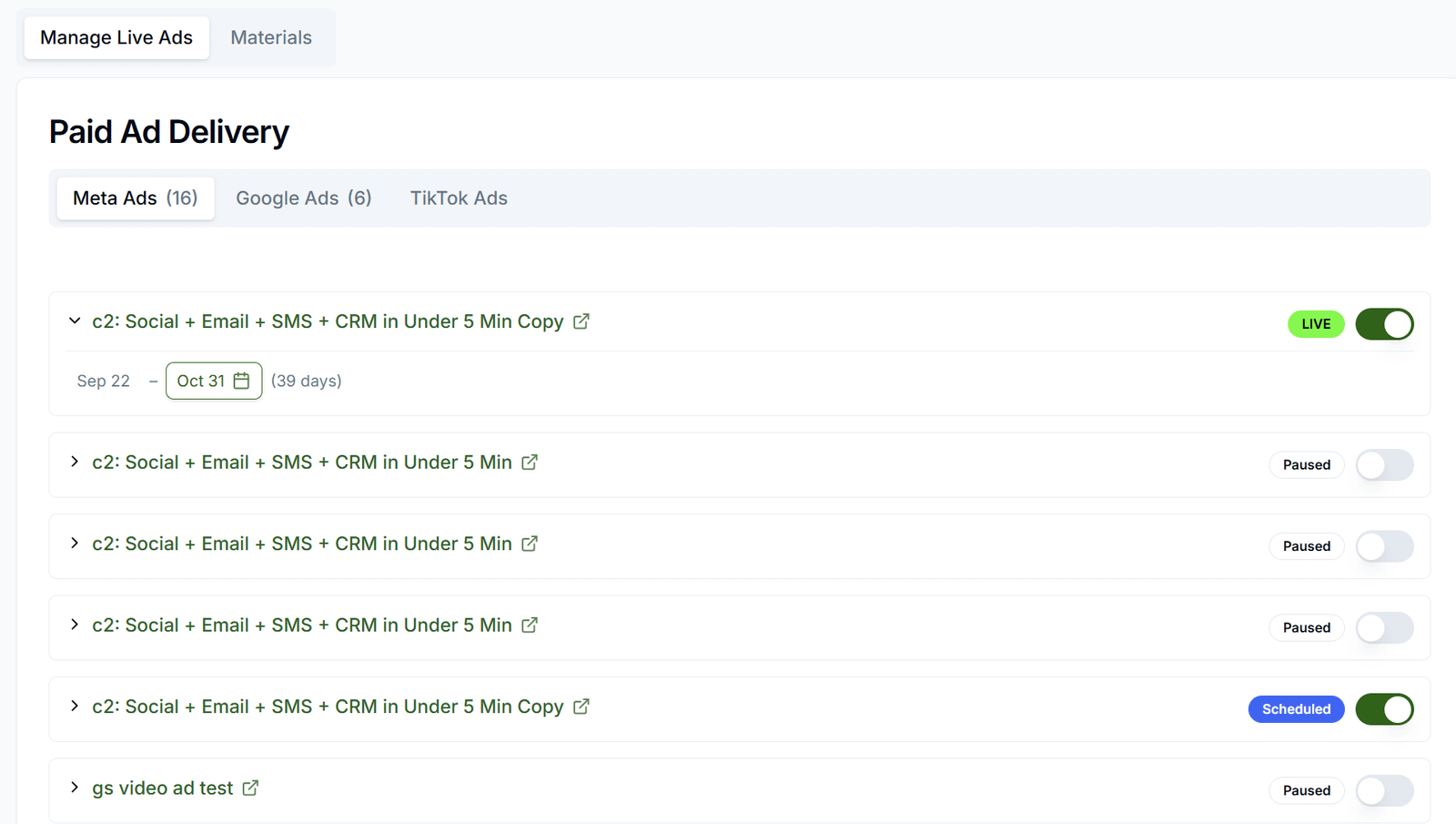
Open Manage Live Ads
- Go to Campaigns in the main navigation
- Select the Paid Social tab
- Open the Manage Live Ads sub-tab
- Choose Meta Ads, Google Ads, or TikTok Ads to filter live campaigns
Flight Dates & Gross Budget
- Expand a campaign row to edit start and end dates with the calendar buttons
- The Gross budget field is one total per published campaign (before the Get Shouting processing fee). You edit it at the campaign row—not per ad set or ad group in this view
- Behind the scenes: Google updates the campaign budget resource; Meta and TikTok split the net total evenly across ad sets or ad groups on that campaign
- Child rows (Meta ad sets, Google/TikTok ad groups) support pause and resume only—not separate budget fields
- Increase gross budget when you extend a flight so daily spend stays above each platform’s minimum (especially Google)
- Updating gross budget here adjusts net spend on the ad platform using your original processing-fee rate—you are not charged the processing fee again
Pause or Resume Delivery
Use the delivery toggle on each campaign (and child ad sets or ad groups when shown) to pause or resume without opening Ads Manager. Status syncs from Meta, Google, or TikTok when you reload the tab.
When Budget Changes Are Rejected
If extending a flight drops the daily budget below a platform’s minimum, raise the Gross budget total or shorten the flight. Get Shouting sets the total budget of your flight; platforms enforce a per-day floor when that total is spread across the remaining days.