How to Connect Slack
Post campaign review links to your team’s Slack channel and receive automatic updates when campaigns build, schedule, publish, or email sends complete.
Each brand connects its own Slack workspace from Social & Brand Settings. This installs the Get Shouting bot so it can post messages to a channel you choose. It is separate from Sign in with Slack at login, which only authenticates your Get Shouting account.
Required role: Brand Admin or Super Admin to connect, disconnect, or change notification settings. Available on all plans.
Before You Start
- Your Slack workspace admin must allow installing Slack apps
- Pop-ups must be enabled for getshouting.app when you click Connect Slack
- NOTE: For private channels, invite the Get Shouting app to the channel in Slack before it appears in the channel picker. You may want to create a new channel for this purpose.
- Click your Display Name → Social & Brand Settings
- Scroll to the Slack card
- Click Connect Slack and approve the app in the pop-up
- Choose a Default channel from the dropdown (channels the bot can see)
- When you change the default channel, click Save channel
- Turn automatic notification toggles on or off (each saves immediately when flipped)
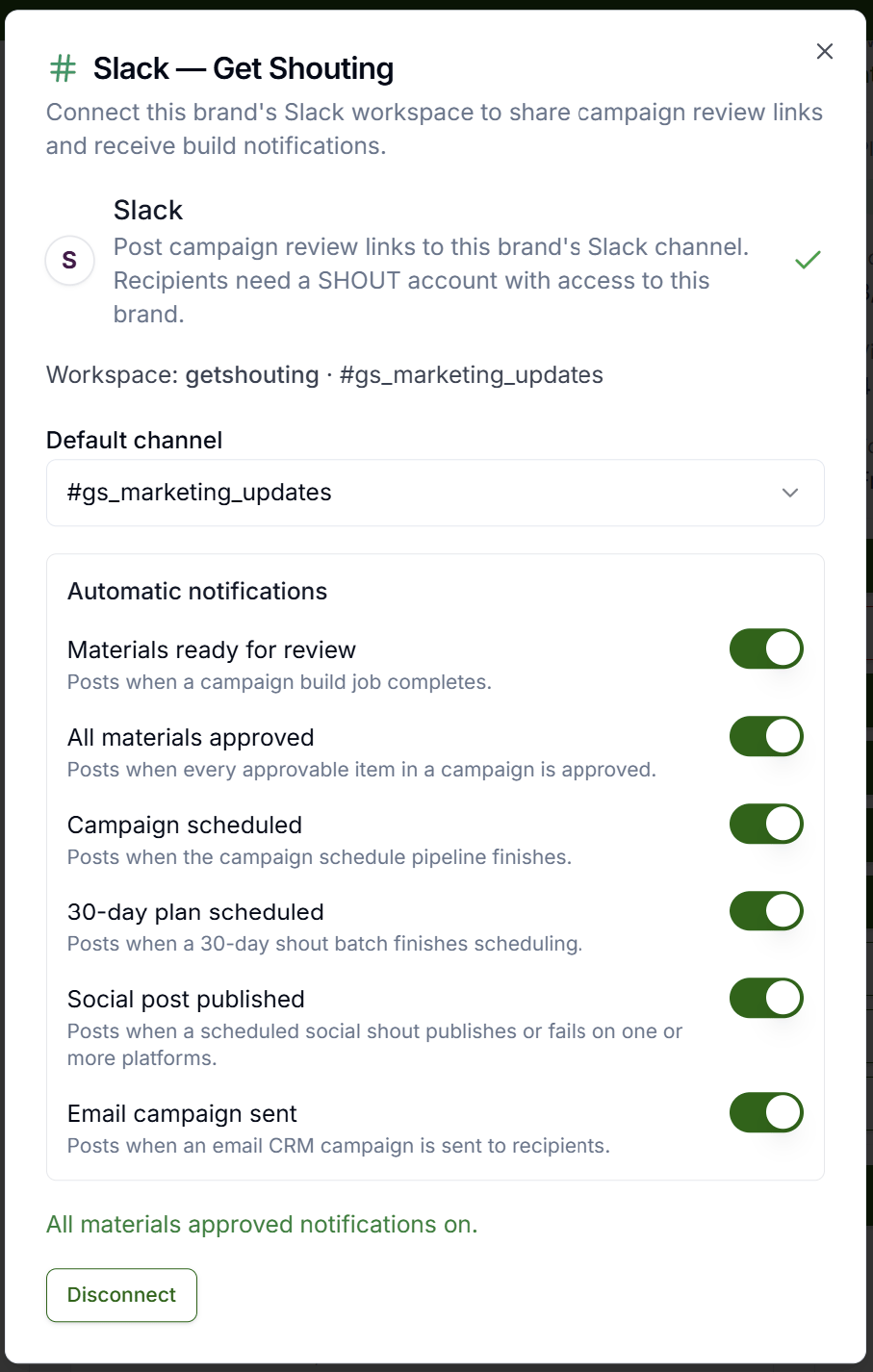
Automatic Notifications
Automatic posts always go to the default channel only — not per-user and not per-event channels. Without a default channel, automatic notifications are skipped silently (your campaigns still run normally).
| Toggle | Default | When it posts |
|---|---|---|
| Materials ready for review | On | Campaign build job completes |
| All materials approved | Off | Every approvable item is approved |
| Campaign scheduled | On | Campaign schedule pipeline finishes |
| 30-day plan scheduled | On | 30-day shout batch finishes scheduling |
| Social post published | On | Scheduled social shout publishes or fails on one or more platforms |
| Email campaign sent | On | Email CRM campaign is sent to recipients |
Social notification messages list platform names and time only — they never mention third-party vendor names. Recipients still need a Get Shouting account with access to the brand to open review links.
Agency / Multi-Brand
Agency Super Admins see an All Agency Brands grid instead of a single settings page. On each brand card, click Slack Settings to open the same connect flow in a dialog. Each brand can connect a different Slack workspace.
Share a Campaign Review Link Manually
Any brand member with access to campaign review can share manually. Manual shares do not use the automatic toggles.
- Open a campaign → Review
- Click Share → Share to Slack
- Pick a channel each time (defaults to the brand default if set)
- Optionally add a short note, then click Post to Slack
Sign in with Slack vs Connect Slack
On Login and Register, Sign in with Slack uses your Slack identity to access Get Shouting — it does not install the posting bot. To post campaign links and notifications, complete Connect Slack in Brand Settings as described above.
Disconnecting
Open Slack settings (inline card or agency Slack Settings dialog) → Disconnect Slack → confirm. The bot token is removed from Get Shouting; nothing is deleted in Slack.
Troubleshooting
- Connect pop-up blocked: Allow pop-ups for getshouting.app, then retry
- Channel not in picker: For private channels,
/invitethe Get Shouting app in Slack first - not_in_channel when posting: Invite the bot to the channel (public channels usually work automatically; private channels require an invite)
- Notifications not firing: Set a default channel and confirm the matching toggle is on
- invalid_team_for_non_distributed_app: Your Slack workspace admin must enable public distribution for the Get Shouting Slack app (workspace install on customer workspaces)
Next Steps
- Brand Settings
- Create a Campaign
- Agency tab (multi-brand Slack setup)
- Connect Social Accounts (publishing to Instagram, Facebook, etc.)
Keep Your Team in the Loop on Slack
Campaign reviews, schedule updates, and publish alerts — where your team already works
Start Your Free Trial TodayNo credit card required • 14-day free trial • Cancel anytime