What Are Segments?
Dynamic groups that update as customer behavior changes, so you message the right people, not everyone.
A segment is a filter-based audience: contacts enter and leave automatically when they match (or stop matching) your rules. Unlike a static list, you set the logic once and Get Shouting keeps the group current.
Why It Matters
Customizing your messages for different groups is the key to success, and the more targeted, the better. Blasting your whole list treats VIPs, strangers, and lapsing buyers the same. Segments let you send different offers to different groups and many of Get Shouting's Segments update themselves automatically.
Plan & setup notes
Lists are static (manual add/remove). Segments are dynamic (filter rules). Commerce auto-segments require a connected store. Creating or editing custom segments requires Pro or Agency; all plans can use auto-created segments in campaigns.
What to Do
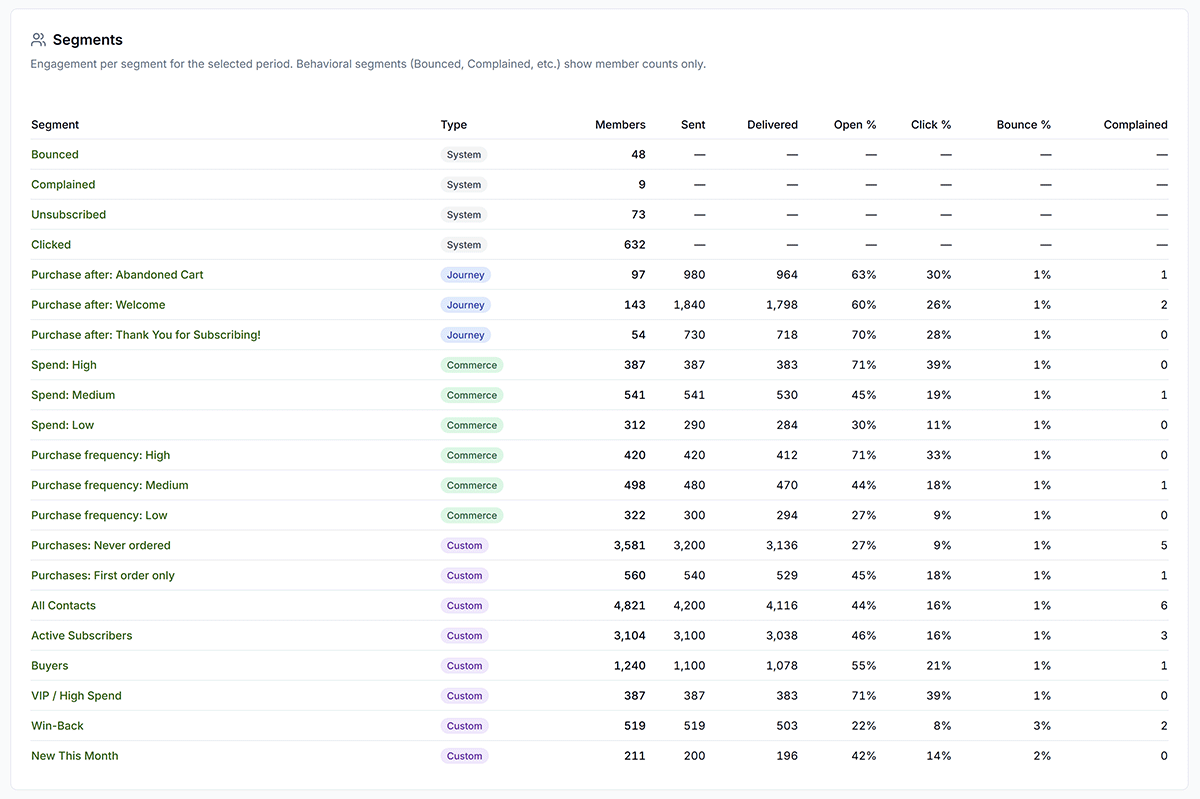
- Know the types: email-health segments (Bounced, Clicked, Unsubscribed), commerce segments when your store is connected (Spend, Purchase frequency, Purchases), and journey segments (Purchase after: [journey name]).
- Review auto-segments first under Contacts → Segments before building custom ones; Get Shouting may already have the group you need.
- Create custom segments (Pro/Agency): filter by contact status, tags, date added, commerce behavior (ordered before/after a date, spend range), or email engagement.
- Edit anytime: open a custom segment, change filter rules, save; membership recalculates automatically. Contacts in Bounced or Complained are always excluded from sends.
- Use in sends: pick a segment as the audience when you build an email campaign, SMS blast, or multi-channel Campaign.
Copy / Template You Can Steal
Lists vs segments:
List = static (Subscribers, imports)
Segment = dynamic (rules update membership)

Auto-created examples:
Spend: High | Purchase frequency: Low | Purchases: First order only
Clicked | Unsubscribed | Purchase after: Welcome

Custom segment idea (Pro/Agency):
Name: No order in 90 days
Rule: Has not ordered in the last 90 days
Do It in Get Shouting
Full click-by-click guide: Create & Manage Segments.
- Open Contacts → Segments to view auto-created segments and contact counts.
- Pro/Agency: click Create Segment → choose Email Segment or SMS Segment → name it and add filter rules (AND/OR) → save.
- To edit a custom segment: open it from the grid, update filters or description, save. Counts refresh as contact data changes.
- When building a campaign, select the segment on the Recipients step. You can combine a list and a segment (deduplicated).
- Next lesson: map commerce segments to your three customer buckets (VIPs, at-risk, one-and-done).
Keep in Mind
- Segments can be used for for email, SMS, and CRM Journeys.
- Segments recalculate from live data. You do not manually add or remove contacts.
- Tags added by CRM Journey Add Tag steps build behavioral audiences you can segment on later.
- Pro & Agency plans can create custom segments.
- Review segment sizes monthly (see Review Your Segments Monthly).
Related How-To Guides
Apply Your Knowledge
Start your free trial and follow along in Get Shouting.
Start Your Free Trial TodayNo credit card required • 14-day free trial • Cancel anytime