How to Connect Canva
Import Canva designs straight into your Assets and Ads, or export finished ad creatives back to Canva as editable projects.
Prerequisites
- A Get Shouting account (signed in)
- A Canva account that can authorize the Get Shouting app
- Pop-ups allowed in your browser for the authorization window
Canva connects via OAuth — no API keys to generate. The connection lives on your user account and works across every brand you access, separate from Social & Brand Settings and Meta Ads.
Step-by-Step Connection
Step 1: Open My Profile
- Log in at getshouting.app
- Click your Display Name in the top right of the navigation bar
- Open My Profile
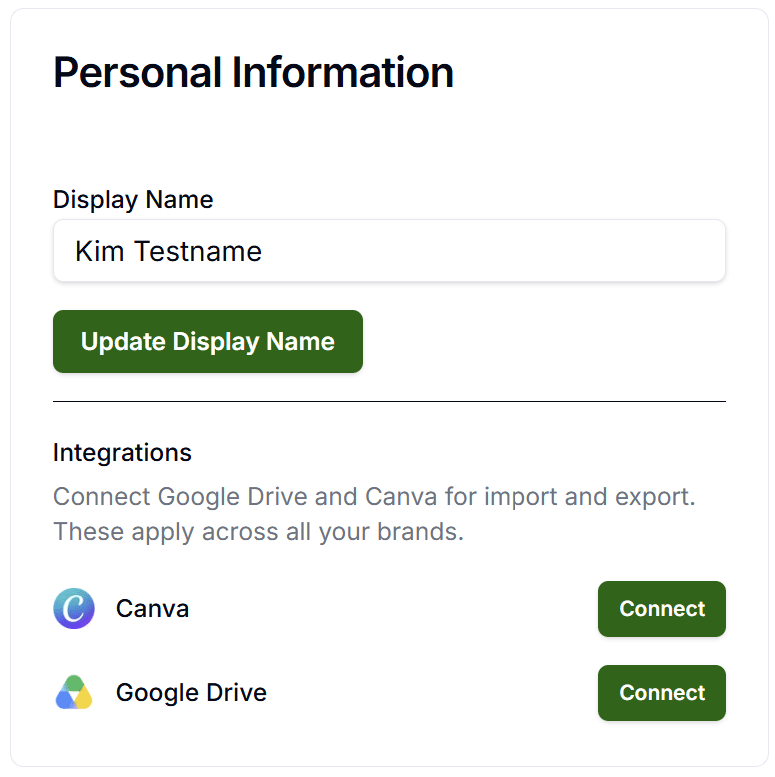
Step 2: Connect Canva
- Under Integrations, find Canva
- Click Connect
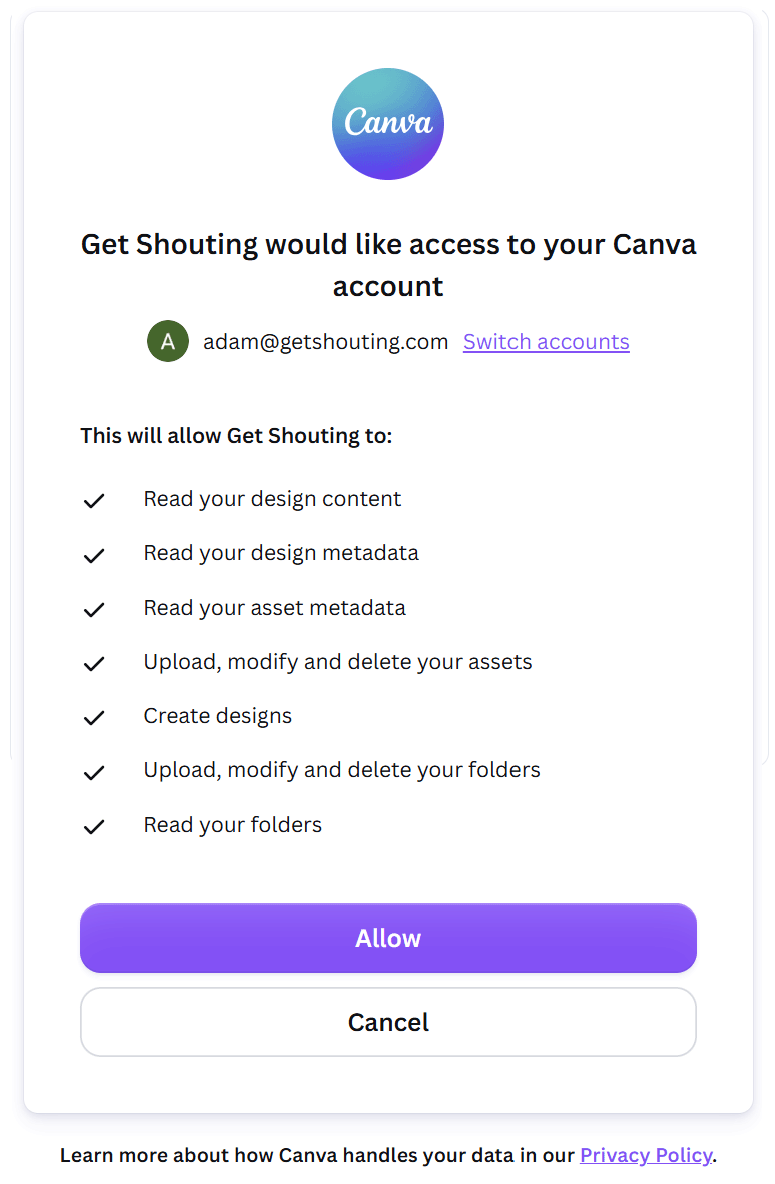
- In the pop-up, sign in to Canva (if needed) and authorize Get Shouting
- When the pop-up closes, confirm the green check and "Canva connected successfully."
You can also start the same authorization by clicking Canva inside the Upload Box the first time you try to import a design.
Step 3: Import a Design from Canva
- Open any surface that uses the Upload Box — Assets → Add Assets, a Shout/Ad preview, or the ad logo manager
- Click Canva (this connects first if you are not linked yet)
- In the Import from Canva dialog, pick a design from your recent designs (up to about 30, newest first)
- Wait while Canva exports the design and Get Shouting imports it through the normal upload pipeline
If no designs are listed, create or open a design in Canva first, then retry. Use Disconnect Canva account in the dialog footer if you need to switch Canva accounts.
Step 4: Export Ad Creatives to Canva
- Open the Ad in Preview with the platforms and assets you want
- Click Download or Export
- Select Export to Canva, then Continue (authorize or reconnect if prompted)
- Wait for the summary — Get Shouting creates one Canva design per PNG in a project folder
- Use the Edit links in the summary to open each design in Canva (links are time-limited)
Large variant groups may take several minutes. If you connected Canva before export scopes existed, disconnect and reconnect from My Profile → Integrations, then retry export.
Disconnecting
Click your Display Name → My Profile, find Canva under Integrations, and click Disconnect. You can also disconnect from the Import from Canva dialog via Disconnect Canva account. Import and export to Canva stop until you connect again — files already in Assets or designs already in Canva are not deleted.
Troubleshooting
Pop-up does not open
Allow pop-ups for Get Shouting in your browser, then retry Connect from My Profile → Integrations.
Connection failed
Sign in to Canva in another tab first, clear cache or try a private window, then retry Connect.
Connected but export asks to reconnect
Disconnect Canva, connect again, then use Export to Canva so the export scopes are granted.
No designs in the picker
Create or modify a design in Canva, then open Import from Canva again.
Related Marketing Academy Lessons
Strategy and context for why these steps matter:
Design Faster with Canva + Get Shouting
Import designs in, export ad creatives out — no manual file juggling
Start Your Free Trial TodayNo credit card required • 14-day free trial • Cancel anytime