How to Use Organic Social
Manage, analyze, schedule, copy, and delete draft and published Shouts from the Campaigns hub.
Open Campaigns → Organic Social in the main navigation to manage all your Shouts — drafts and published. View, schedule, duplicate, delete, and analyze performance. All columns are sortable. Search matches name or post copy only (not by date).
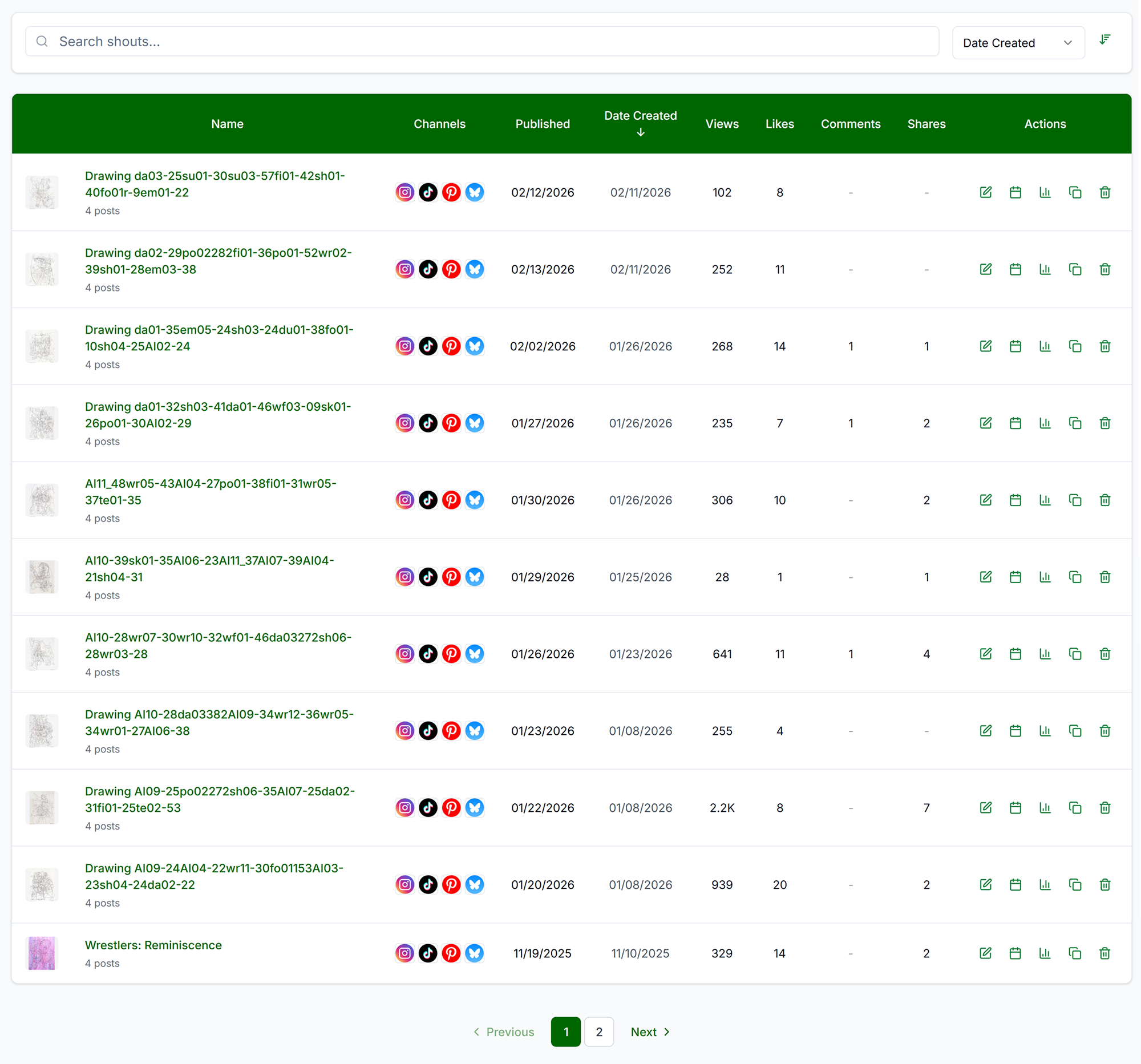
Core Actions

- Edit: Clicking the Edit icon or the name of the Shout will open the Shout on the Preview page.
- Schedule: For drafts — opens the Schedule Shout dialog from the Campaigns hub (not the full Schedule Selector page). Use Reschedule for items already on the calendar.
- Analyze: View metrics (Impressions, Views, Likes, Comments, Shares, etc.) per platform and a link to the specific platform post. Different platforms provide different analytics. Analytics for particular platforms may be delayed up to 36 hours.
- Duplicate: Duplicate Shout (same assets, copy, platforms) Creates an exact copy of the Shout which you can edit or schedule. All edits or changes will only apply to this unique new Shout. Does not copy analytics.
- Delete: Permanently remove. Scheduled = cancels publish. Published = removes from Get Shouting but posts stay live on platforms.
Troubleshooting
- Shouts not showing: Clear filters. Create a Shout.
- Schedule disabled: Shout may already be scheduled. Connect platforms. Add assets.
- Analytics not updating: Platform API delay (up to 24 hours). Reconnect platform if connection expired.
Related Marketing Academy Lessons
Strategy and context for why these steps matter: