How to Use the Email Campaigns Page
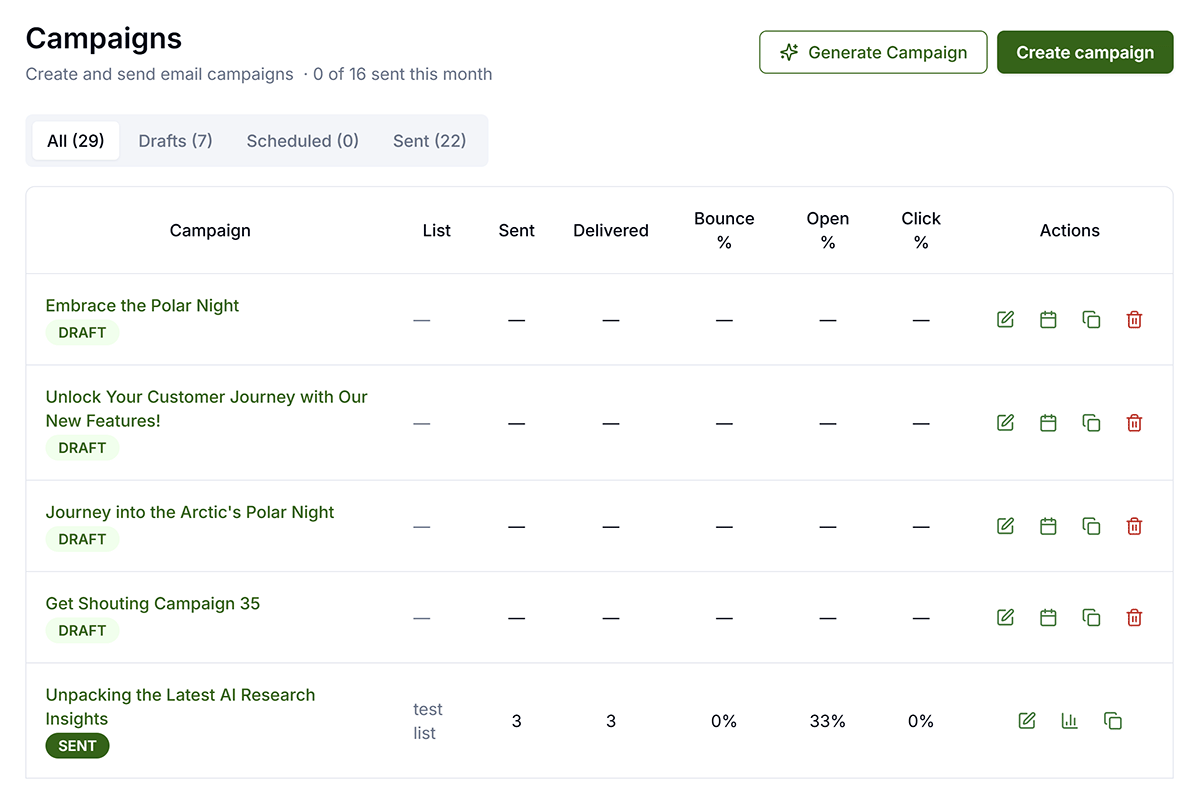
Email Campaigns are one-time sends to a Segment; perfect for promotions, announcements, and newsletters. The Email Campaigns page lists all of your draft and past Email Campaigns with engagement metrics and allows you to create and schedule new ones.
Create & Send
Create Campaign — Campaigns can be created manually, Generate from a URL, or create with a combination of Content Templates and Design Templates. Any email can have a new Design Template applied at any time.
Core Actions

- Edit: Clicking the Edit icon or the name of the Email will open the Email on the Email Editor page.
- Schedule: For drafts — opens Schedule Selector overlay, choose date/time
- Analyze: View metrics (List, Sent, Delivered, Bounce %, Open %, Click %)
- Duplicate: Duplicate Email (same assets, copy, platforms) Creates an exact copy of the Email which you can edit or schedule. All edits or changes will only apply to this unique new Email. Does not copy analytics.
- Delete: Permanently remove. Scheduled = cancels publish. Published = removes from Get Shouting but Email has already been sent.
A/B Testing Email Campaigns
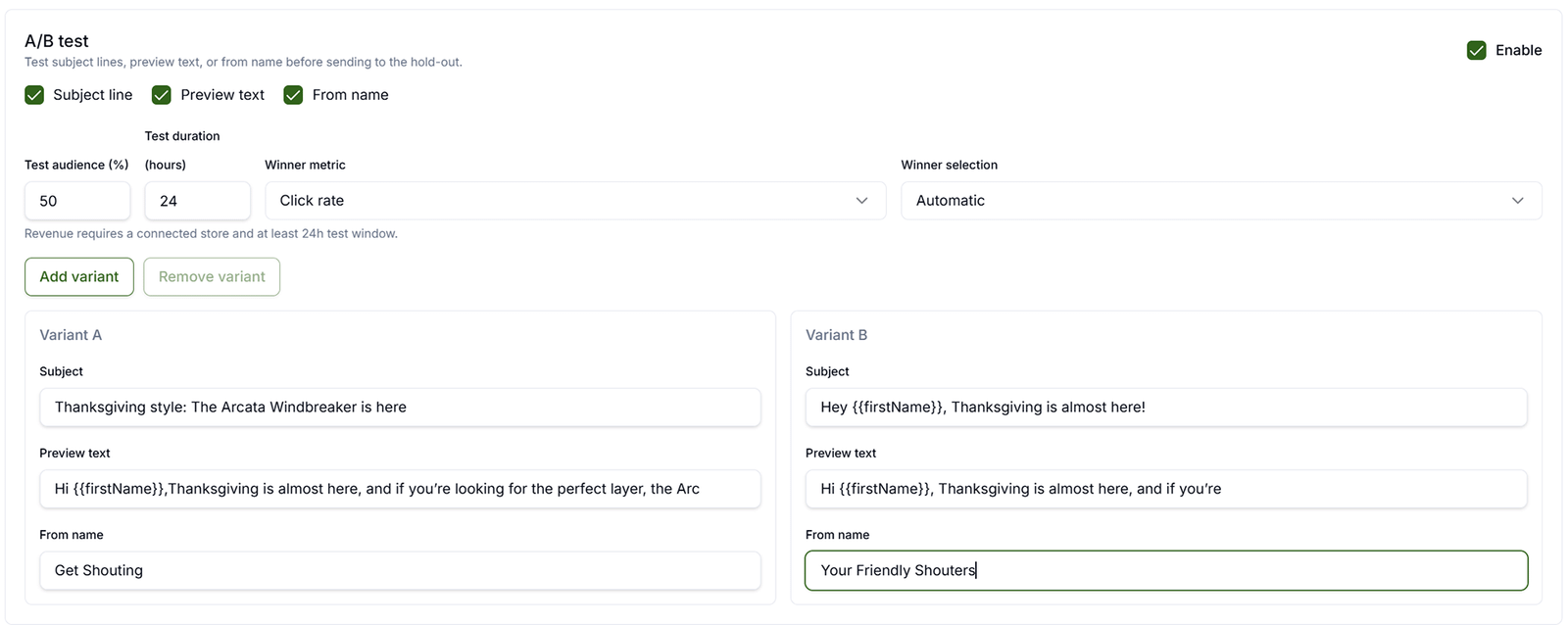
Email A/B testing is available on Pro and Agency plans. Open a draft campaign in the Email Editor — the A/B test panel appears below the subject and preheader fields.
What You Can Test
- Subject line
- Preview text (preheader)
- From name
Email body and design are shared across all variants. You can run up to four variants (A, B, C, and D).
Setup Steps
- Open a draft campaign and click Edit.
- Check Enable in the A/B test panel.
- Choose which fields to test (subject, preview, from name).
- Set Test audience (%) — 10–100. The remainder is the hold-out who waits for the winner.
- Set Test duration (hours) — how long to wait before sending the winner to the hold-out (1–168 hours; revenue tests require at least 24 hours and a connected store).
- Choose Winner metric: click rate or revenue.
- Choose Winner selection: automatic, or notify you to pick manually.
- Fill in each variant’s tested fields, then Schedule or Send Now as usual.
How the Send Works
If you schedule an A/B campaign for Tuesday at 9:00 AM with 50% test audience and a 24-hour test duration:
- At schedule time: roughly half of the test audience receives variant A and half receives variant B (for two variants).
- Hold-out (~50%): does not receive email yet — they wait while opens, clicks, or revenue from the test group are measured.
- After test duration: the hold-out automatically receives the winning variant (or you pick the winner manually, then the hold-out sends immediately).
Important: The test duration does not delay variants A and B — it delays the rest of your list so you can pick a winner first. At 100% test audience, everyone receives a variant at send time with no hold-out and no second send. An A/B test counts as one campaign toward your monthly campaign limit, not one per variant.
After the Send
- Review opens, clicks, bounces, and complaints in analytics.
- For A/B campaigns, compare per-variant performance in campaign analytics and confirm when the hold-out received the winner.
- Compare performance to past campaigns and adjust subject lines and segments next time.
Next Steps
Related Marketing Academy Lessons
Strategy and context for why these steps matter: