How to Use the Ads Tab
Manage, analyze, schedule, copy, and delete draft and published Ads from the Campaigns hub (Pro & Agency).
Open Campaigns → Ads in the main navigation (Pro & Agency plans). View, schedule, duplicate, delete, and analyze ad creatives. All columns are sortable. Search matches name or post copy only.
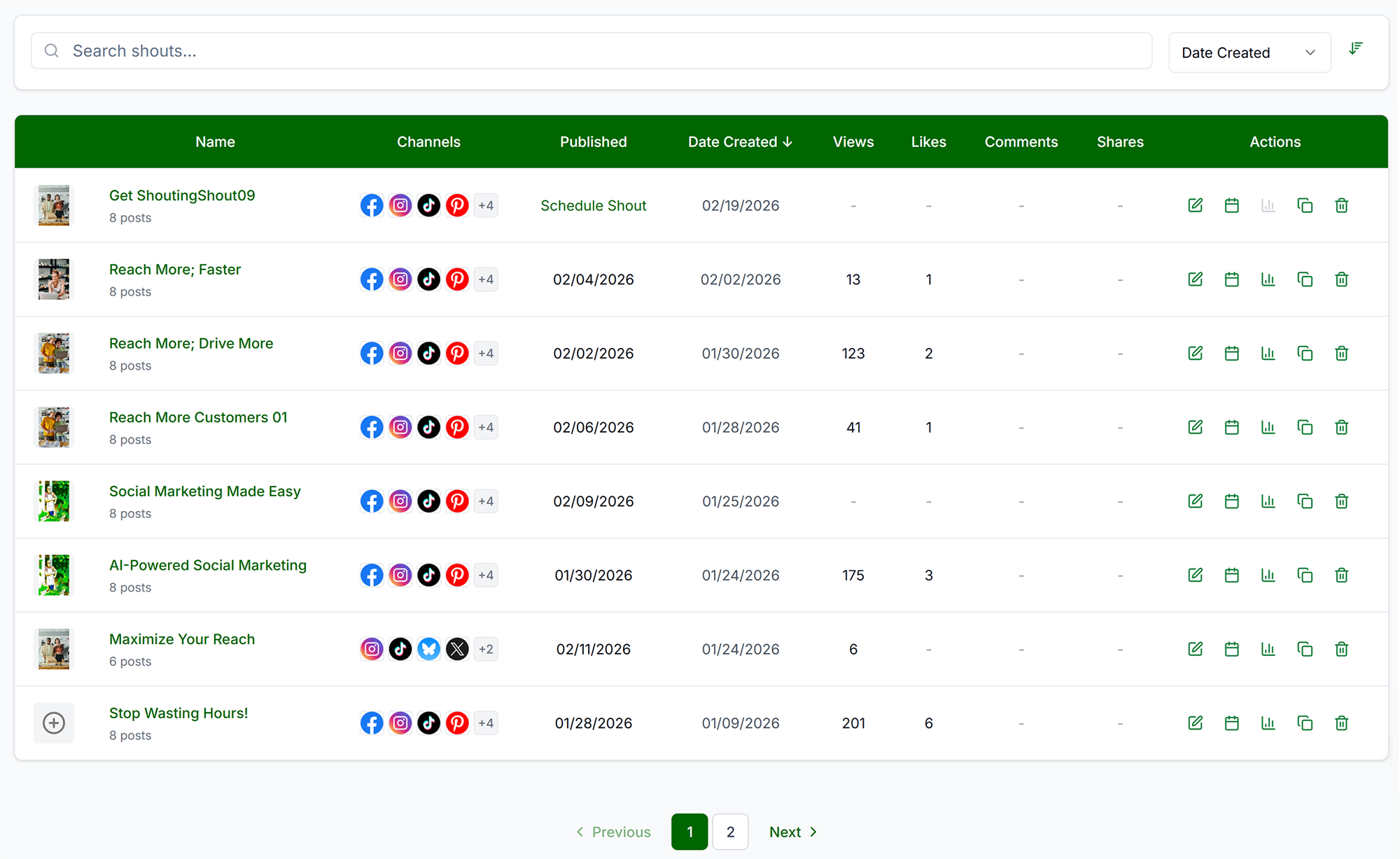
Core Actions

- Edit: Clicking the Edit icon or the name of the Ad will open the Ad on the Preview page.
- Schedule: For drafts — opens the Schedule Shout dialog from the Campaigns hub. Use Reschedule for items already on the calendar.
- Analyze: View metrics (Impressions, Views, Likes, Comments, Shares, etc.) per platform and a link to the specific platform post. Analytics may be delayed up to 36 hours on some platforms.
- Duplicate: Creates an exact copy with the same assets, copy, and design settings. Does not copy analytics.
- Delete: Permanently remove. Scheduled = cancels publish. Published = removes from Get Shouting but posts stay live on platforms.
Troubleshooting
- My Ads not visible: Requires Pro or Agency plan — upgrade in Billing.
- Ads not showing: Clear filters. Create an Ad.
- Schedule disabled: Ad may already be scheduled. Connect platforms. Add assets.
- Analytics not updating: Platform API delay (up to 24 hours). Reconnect platform if connection expired.